


Backup4all’s licensing system provides a network backup solution for large computer environments with a special focus on the network environment. Backup4all is designed to be reliable, easy-to-use and affordable. It can be used as a reliable network backup solution in networks with hundreds of computers connected.
On this page:
In a network backups configuration, one or multiple computers are backed up to a single or multiple destinations using a backup application. In this article we will analyze 3 case studies of network backup using Backup4all.
Network administrators can install Backup4all on a single computer and enter a single network registration key. All workstations can run the application from there. For example if you have 25 users in a network environment, you will pay for 25 licenses and you will receive a single registration key valid for all 25 users.
Backup4all network licenses are a recommended solution for:
- Home users (two or more computers in a network environment; i.e. using Backup4all for laptop backups)
- Small and medium companies
- Large companies
- Education (schools/universities with large computer networks)
Case-studies
One Source – Multiple Destinations:
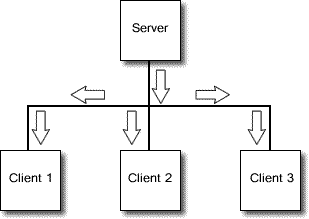
- Backup sources are on one computer and the backup destination on other computers
- Applicable when important data is stored on a computer (server) and to ensure full security the data is backed up onto multiple computers from that network. Backup4all stores the configuration files on the backed up station (server) and on each of the destination stations, where it places (beside the zip files) the backup catalogs, so that even if it is uninstalled from the server (or the server encounters technical problems), the network backup is secured and the backup/restore process can easily be continued by installing Backup4all on another computer.
- Destination can be also removable media, like CDs/DVDs, HD-DVD or Blu-ray discs, USB drives, ZIP drives, that are connected to the destination stations.
One Source - One Destination
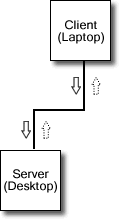
- Backup sources are on one computer and destination is set to another computer in the same network. For example, you have your holiday pictures on your laptop (backup sources) and want those backed up to your desktop (network backup destination).
- Commonly usage is the laptop backup situation, where you backup emails, personal documents, pictures or other personal data from the laptop to desktop pc to increase the security of your data. When considering laptop data protection, a good strategy would be to backup the critical mobile data to your desktop pc every time you travel and carry the laptop with you. Even if this sounds time consuming, if you use Backup4all you will ease a lot the backup task because of its friendly design, administration, management and reporting benefits. Backup4all can perform incremental backups of your data (saving disk space this way) on a scheduled basis, thus saving you both time (since is unattended) and money. Remember that backup is critical, since even the most meticulous data protection system can’t prevent laptop theft or damage.
Multiple Sources - One Destination
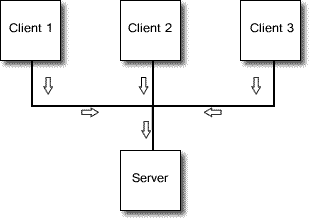
- Network backup destination will be on one computer, while the sources are located on several computers in the same network environment
- One example for this situation is companies with local area networks. There is a central server where all the other computers store the backed up data. Network administrators can install Backup4all only on the server to ease the process of administration and management. Backup4all can be scheduled to backup the data from the other computers in the network and at the end of each backup job it can be configured to send an email with the network backup log results.
Backup4all is suitable as a server backup software and even as an enterprise-level backup software.
Major features and Benefits
- Powerful – Through its technology, Backup4all speeds up the network backup process giving you the benefit of having a reliable backup performed in a reduced amount of time. Its ’multi-threaded’ feature allows multiple backups be performed simultaneously, while maintaining your data integrity making it suitable to be used as a server backup software.
- Trustworthy – Backup4all makes the network backup process more reliable by recording the settings used for the each backup process (in .ini files) and also recording a backup catalog (.bkc) of the files. These are stored on the computer where it is installed and on the destination too. It also creates catalog files to keep track of modified/removed files. After each backup, by default, Backup4all also verifies the resulted zip files to ensure that the process was successful. Using Backup4all your data can be protected with strong AES encryption too.
- Easy installation and administration – Installing Backup4all is very easy and the administration process resumes itself to verifying the log files stored by Backup4all (or sent through email) to see the status of the network backup (successful/failed). The installation/administration process is easy both for network administrators and users. For example, in case of a network with several computers connected to a server, even if the configuration is done individually and saved on each of the user’s computer, Backup4all can be installed only on the server and the users' data can be backed up directly from their workstations/laptops without having Backup4all installed. The scheduling feature also helps users secure their data on a daily, weekly or monthly basis and spares time by automating this task.
- Key Features:
- Zip 64 compression
- Automatic scheduling
- Spanning over multiple media
- FTP backup
- AES encryption
- Open files support
- Large data volume support
- Zip testing
- Different backup types
- Simultaneous backup/restore
- Report and logging
- Email notifications
Backup to network
Steps to follow:
- Open Backup4all and select File -> New (Ctrl+N).
- In the Where do you want to save the backup? section, select the network drive as backup destination. Press Next.
- On the What do you want to backup page, add the backup sources. Press Next.
- On the Filter the backup sources page, you can set include/exclude filters for backup sources. Then press Next.
- On the How do you want to backup page, you can choose the backup type and the encryption.
- On the When do you want to backup page, you can set the backup job to automatically run on the specified time and days. Press Next.
- On the Personalize your backup job page, enter a name for the backup in the Backup name field.
- Press Save and run.